.svg)

If you keep hearing that AI will save you hours but you're not sure where to actually begin, this is for you. You don't need to be technical, and you don't need to learn a new skill called "prompting." You need a few good prompts to copy, and somewhere to run them that hands you a finished resource instead of a wall of text. Here are six prompts to start with, what each one is for, and exactly how to turn it into a real lesson, worksheet or document in tutero.ai.
Six copy-paste prompts every teacher can use, each paired with how to turn it into a finished resource. Jump to what you need:
There's really only one trick, and it isn't clever wording. It's being specific. The more you tell the AI, the more usable what comes back. For every prompt below, swap the words in [brackets] for your year level, your subject and your topic. "Make a worksheet on fractions" gives you something generic; "Make a Year 7 worksheet on adding fractions with unlike denominators" gives you something you could hand out.
You can paste these into any AI chatbot. But a chatbot gives you text you then have to format, lay out and check. In tutero.ai you describe the same thing in plain language and get the finished resource back — formatted, curriculum-aligned, ready to print. So under each prompt, we've added how to do the same job in tutero.ai.
The six prompts below are already written in detail, on purpose: that detail is what makes the output good. You do not need to craft them yourself. Copy one, swap the words in brackets, and you are set.

A complete lesson
What it's for: a ready-to-teach lesson when you're starting from a blank page.
With tutero.ai: type that in, or even just "Year 7 lesson on equivalent fractions," and tutero.ai builds the whole lesson — goal, hook, activities, check for understanding — plus the slides to teach it. Change anything you like, and it's done.

A differentiated worksheet
What it's for: one worksheet that reaches your whole class, not just the middle.
With tutero.ai: describe the worksheet and it generates all three levels in one step, print-ready, with the answer key attached. No formatting, and no making it three times. If you want to see a finished example first, browse our printable exponents worksheets.
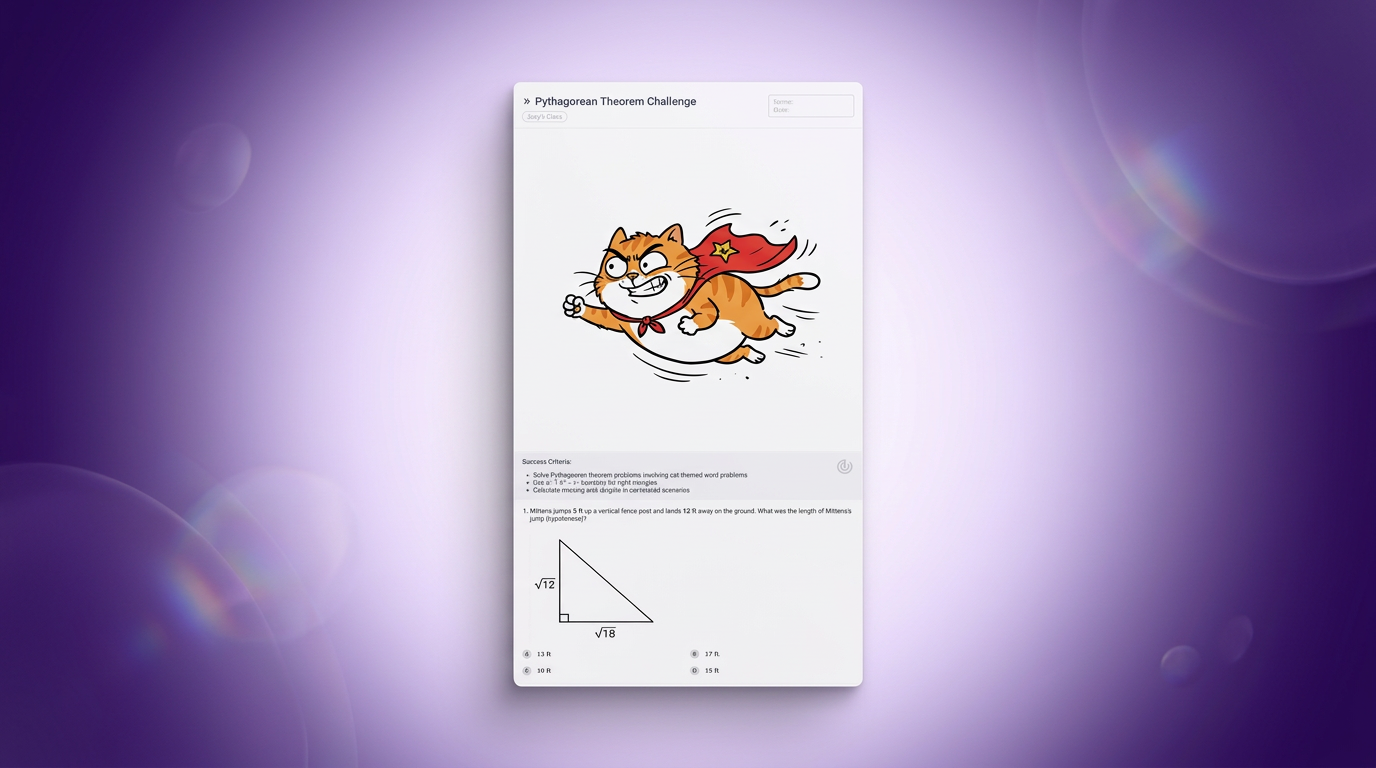
A quick quiz or exit ticket
What it's for: a fast check at the end of a lesson to see what landed.
With tutero.ai: it builds the quiz aligned to the lesson you taught, marks itself, and shows you which students missed what, so you know what to revisit.

A one-page explainer or handout
What it's for: a handout, a revision sheet, or something for a student who missed the lesson.
With tutero.ai: generate it as a clean, formatted document you can print or share, not a block of unformatted text.

A parent email or note home
What it's for: the messages that are hard to word when you're tired.
With tutero.ai: draft the communication in seconds and tidy it into a document you can send, in a tone that sounds like you.

A whole unit or topic plan
What it's for: mapping out a term or a topic before you build the individual lessons.
With tutero.ai: it lays the unit out week by week, and you can open any week and generate the full lesson from it with one click.
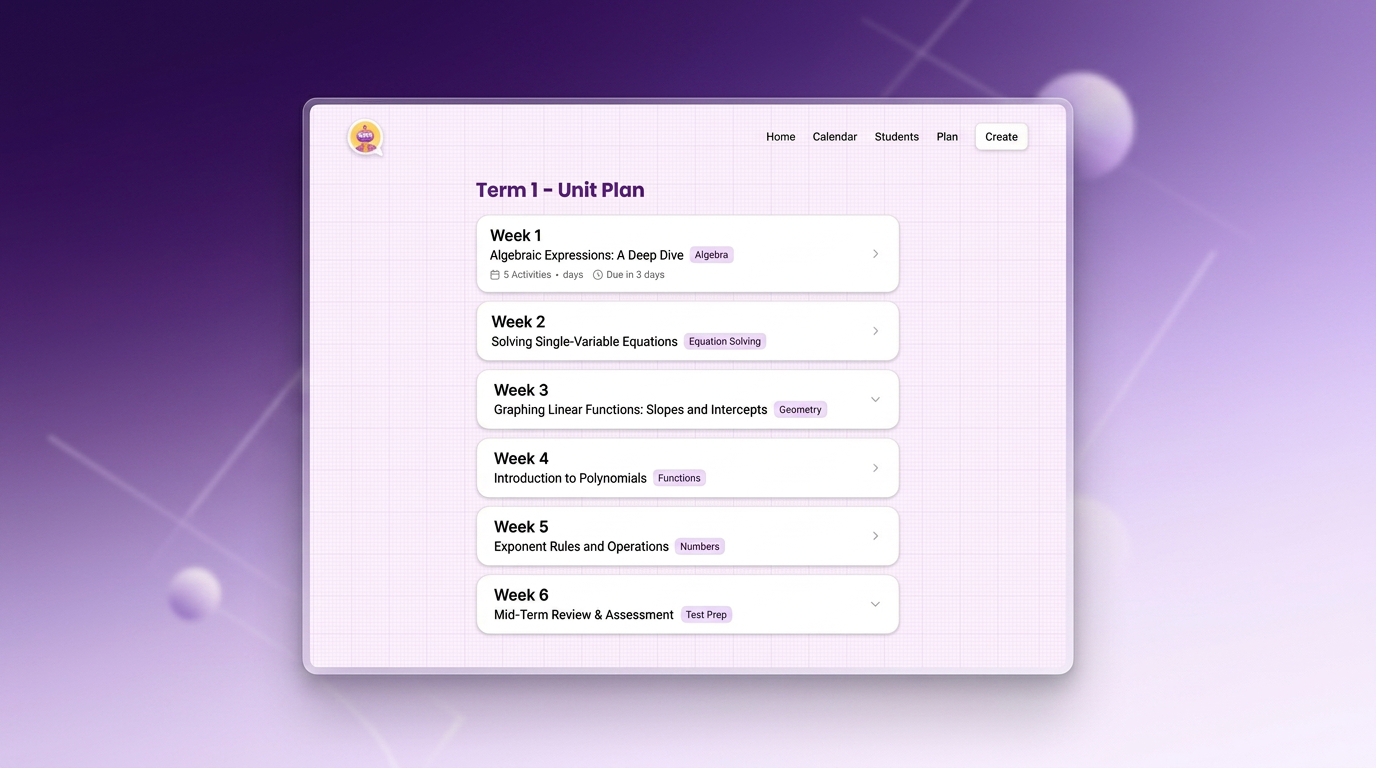
The difference: a chatbot gives you text, tutero.ai gives you the resource
This is the part that surprises teachers who start with a general chatbot. You write a good prompt, and what comes back is correct enough but raw — a list of questions with no layout, no answer key, no curriculum alignment, and no real sense of your class. You still spend twenty minutes turning it into something you'd hand out.
The six prompts above work in tutero.ai the same way, except the output is the finished thing: a formatted worksheet, a structured lesson, a clean document, aligned to the curriculum and differentiated, ready to print or share. The prompt is the start; the resource is what you actually wanted.
Bonus: build the whole set from one prompt
Here is the move that saves the most time once you are comfortable. In a chatbot, each prompt above is a separate job you copy, paste and format. With tutero.ai they connect: generate the lesson, then build the matching worksheet, quiz and slides straight from it, so everything stays aligned to the same goal and the same class. One prompt becomes the whole teaching package, not six separate copy-pastes.
How to start with tutero.ai
If you've never used it, here's the whole thing:
- 1. Describe what you need in plain words. Use one of the prompts above, or just say "a Year 5 reading comprehension on the water cycle." No special syntax.
- 2. Tell it the basics. The subject and the year level, so it pitches it right and aligns to the curriculum.
- 3. Review, tweak and download. Read it the way you'd check a colleague's draft, edit anything, then print or share. It's free for teachers, so there's nothing to lose by trying one.

A few tips for your first week with AI
You don't have to change how you teach. You're just handing off the grunt work. A few things that help:
- Start with one prompt. Pick the lesson or the worksheet, run it for next week's class, and see how it feels on real work.
- Always read before you use it. AI is a fast first draft, not a finished authority. You stay the professional in the room.
- Use it for the time-eaters. Worksheets, first drafts, formatting, parent emails. Keep your energy for the teaching only you can do.
- Be specific, every time. Year level, topic, what you want. Specific in, useful out.
That's the whole on-ramp. Pick a prompt, try it in tutero.ai, and you'll have a finished resource before your coffee's cold.
You don't need to be technical to use AI as a teacher. You need a few good prompts and somewhere that gives you a finished resource, not a wall of text.
You don't need to be technical to use AI as a teacher. You need a few good prompts and somewhere that gives you a finished resource, not a wall of text.
If you keep hearing that AI will save you hours but you're not sure where to actually begin, this is for you. You don't need to be technical, and you don't need to learn a new skill called "prompting." You need a few good prompts to copy, and somewhere to run them that hands you a finished resource instead of a wall of text. Here are six prompts to start with, what each one is for, and exactly how to turn it into a real lesson, worksheet or document in tutero.ai.
Six copy-paste prompts every teacher can use, each paired with how to turn it into a finished resource. Jump to what you need:
There's really only one trick, and it isn't clever wording. It's being specific. The more you tell the AI, the more usable what comes back. For every prompt below, swap the words in [brackets] for your year level, your subject and your topic. "Make a worksheet on fractions" gives you something generic; "Make a Year 7 worksheet on adding fractions with unlike denominators" gives you something you could hand out.
You can paste these into any AI chatbot. But a chatbot gives you text you then have to format, lay out and check. In tutero.ai you describe the same thing in plain language and get the finished resource back — formatted, curriculum-aligned, ready to print. So under each prompt, we've added how to do the same job in tutero.ai.
The six prompts below are already written in detail, on purpose: that detail is what makes the output good. You do not need to craft them yourself. Copy one, swap the words in brackets, and you are set.
A complete lesson
What it's for: a ready-to-teach lesson when you're starting from a blank page.
With tutero.ai: type that in, or even just "Year 7 lesson on equivalent fractions," and tutero.ai builds the whole lesson — goal, hook, activities, check for understanding — plus the slides to teach it. Change anything you like, and it's done.
A differentiated worksheet
What it's for: one worksheet that reaches your whole class, not just the middle.
With tutero.ai: describe the worksheet and it generates all three levels in one step, print-ready, with the answer key attached. No formatting, and no making it three times. If you want to see a finished example first, browse our printable exponents worksheets.
A quick quiz or exit ticket
What it's for: a fast check at the end of a lesson to see what landed.
With tutero.ai: it builds the quiz aligned to the lesson you taught, marks itself, and shows you which students missed what, so you know what to revisit.
A one-page explainer or handout
What it's for: a handout, a revision sheet, or something for a student who missed the lesson.
With tutero.ai: generate it as a clean, formatted document you can print or share, not a block of unformatted text.
A parent email or note home
What it's for: the messages that are hard to word when you're tired.
With tutero.ai: draft the communication in seconds and tidy it into a document you can send, in a tone that sounds like you.
A whole unit or topic plan
What it's for: mapping out a term or a topic before you build the individual lessons.
With tutero.ai: it lays the unit out week by week, and you can open any week and generate the full lesson from it with one click.
The difference: a chatbot gives you text, tutero.ai gives you the resource
This is the part that surprises teachers who start with a general chatbot. You write a good prompt, and what comes back is correct enough but raw — a list of questions with no layout, no answer key, no curriculum alignment, and no real sense of your class. You still spend twenty minutes turning it into something you'd hand out.
The six prompts above work in tutero.ai the same way, except the output is the finished thing: a formatted worksheet, a structured lesson, a clean document, aligned to the curriculum and differentiated, ready to print or share. The prompt is the start; the resource is what you actually wanted.
Bonus: build the whole set from one prompt
Here is the move that saves the most time once you are comfortable. In a chatbot, each prompt above is a separate job you copy, paste and format. With tutero.ai they connect: generate the lesson, then build the matching worksheet, quiz and slides straight from it, so everything stays aligned to the same goal and the same class. One prompt becomes the whole teaching package, not six separate copy-pastes.
How to start with tutero.ai
If you've never used it, here's the whole thing:
- 1. Describe what you need in plain words. Use one of the prompts above, or just say "a Year 5 reading comprehension on the water cycle." No special syntax.
- 2. Tell it the basics. The subject and the year level, so it pitches it right and aligns to the curriculum.
- 3. Review, tweak and download. Read it the way you'd check a colleague's draft, edit anything, then print or share. It's free for teachers, so there's nothing to lose by trying one.
A few tips for your first week with AI
You don't have to change how you teach. You're just handing off the grunt work. A few things that help:
- Start with one prompt. Pick the lesson or the worksheet, run it for next week's class, and see how it feels on real work.
- Always read before you use it. AI is a fast first draft, not a finished authority. You stay the professional in the room.
- Use it for the time-eaters. Worksheets, first drafts, formatting, parent emails. Keep your energy for the teaching only you can do.
- Be specific, every time. Year level, topic, what you want. Specific in, useful out.
That's the whole on-ramp. Pick a prompt, try it in tutero.ai, and you'll have a finished resource before your coffee's cold.
You don't need to be technical to use AI as a teacher. You need a few good prompts and somewhere that gives you a finished resource, not a wall of text.
You don't need to be technical to use AI as a teacher. You need a few good prompts and somewhere that gives you a finished resource, not a wall of text.

You don't need to be technical to use AI as a teacher. You need a few good prompts and somewhere that gives you a finished resource, not a wall of text.
The trick isn't clever prompting. It's being specific: the year level, the topic, and what you want.
If you keep hearing that AI will save you hours but you're not sure where to actually begin, this is for you. You don't need to be technical, and you don't need to learn a new skill called "prompting." You need a few good prompts to copy, and somewhere to run them that hands you a finished resource instead of a wall of text. Here are six prompts to start with, what each one is for, and exactly how to turn it into a real lesson, worksheet or document in tutero.ai.
Six copy-paste prompts every teacher can use, each paired with how to turn it into a finished resource. Jump to what you need:
There's really only one trick, and it isn't clever wording. It's being specific. The more you tell the AI, the more usable what comes back. For every prompt below, swap the words in [brackets] for your year level, your subject and your topic. "Make a worksheet on fractions" gives you something generic; "Make a Year 7 worksheet on adding fractions with unlike denominators" gives you something you could hand out.
You can paste these into any AI chatbot. But a chatbot gives you text you then have to format, lay out and check. In tutero.ai you describe the same thing in plain language and get the finished resource back — formatted, curriculum-aligned, ready to print. So under each prompt, we've added how to do the same job in tutero.ai.
The six prompts below are already written in detail, on purpose: that detail is what makes the output good. You do not need to craft them yourself. Copy one, swap the words in brackets, and you are set.
A complete lesson
What it's for: a ready-to-teach lesson when you're starting from a blank page.
With tutero.ai: type that in, or even just "Year 7 lesson on equivalent fractions," and tutero.ai builds the whole lesson — goal, hook, activities, check for understanding — plus the slides to teach it. Change anything you like, and it's done.
A differentiated worksheet
What it's for: one worksheet that reaches your whole class, not just the middle.
With tutero.ai: describe the worksheet and it generates all three levels in one step, print-ready, with the answer key attached. No formatting, and no making it three times. If you want to see a finished example first, browse our printable exponents worksheets.
A quick quiz or exit ticket
What it's for: a fast check at the end of a lesson to see what landed.
With tutero.ai: it builds the quiz aligned to the lesson you taught, marks itself, and shows you which students missed what, so you know what to revisit.
A one-page explainer or handout
What it's for: a handout, a revision sheet, or something for a student who missed the lesson.
With tutero.ai: generate it as a clean, formatted document you can print or share, not a block of unformatted text.
A parent email or note home
What it's for: the messages that are hard to word when you're tired.
With tutero.ai: draft the communication in seconds and tidy it into a document you can send, in a tone that sounds like you.
A whole unit or topic plan
What it's for: mapping out a term or a topic before you build the individual lessons.
With tutero.ai: it lays the unit out week by week, and you can open any week and generate the full lesson from it with one click.
The difference: a chatbot gives you text, tutero.ai gives you the resource
This is the part that surprises teachers who start with a general chatbot. You write a good prompt, and what comes back is correct enough but raw — a list of questions with no layout, no answer key, no curriculum alignment, and no real sense of your class. You still spend twenty minutes turning it into something you'd hand out.
The six prompts above work in tutero.ai the same way, except the output is the finished thing: a formatted worksheet, a structured lesson, a clean document, aligned to the curriculum and differentiated, ready to print or share. The prompt is the start; the resource is what you actually wanted.
Bonus: build the whole set from one prompt
Here is the move that saves the most time once you are comfortable. In a chatbot, each prompt above is a separate job you copy, paste and format. With tutero.ai they connect: generate the lesson, then build the matching worksheet, quiz and slides straight from it, so everything stays aligned to the same goal and the same class. One prompt becomes the whole teaching package, not six separate copy-pastes.
How to start with tutero.ai
If you've never used it, here's the whole thing:
- 1. Describe what you need in plain words. Use one of the prompts above, or just say "a Year 5 reading comprehension on the water cycle." No special syntax.
- 2. Tell it the basics. The subject and the year level, so it pitches it right and aligns to the curriculum.
- 3. Review, tweak and download. Read it the way you'd check a colleague's draft, edit anything, then print or share. It's free for teachers, so there's nothing to lose by trying one.
A few tips for your first week with AI
You don't have to change how you teach. You're just handing off the grunt work. A few things that help:
- Start with one prompt. Pick the lesson or the worksheet, run it for next week's class, and see how it feels on real work.
- Always read before you use it. AI is a fast first draft, not a finished authority. You stay the professional in the room.
- Use it for the time-eaters. Worksheets, first drafts, formatting, parent emails. Keep your energy for the teaching only you can do.
- Be specific, every time. Year level, topic, what you want. Specific in, useful out.
That's the whole on-ramp. Pick a prompt, try it in tutero.ai, and you'll have a finished resource before your coffee's cold.
You don't need to be technical to use AI as a teacher. You need a few good prompts and somewhere that gives you a finished resource, not a wall of text.
The trick isn't clever prompting. It's being specific: the year level, the topic, and what you want.
.svg)
.svg)
Pick one prompt from this list, swap in your topic and year level, and run it. The lesson or worksheet prompt is the easiest first win. In tutero.ai you can just describe what you need in plain words, no special skills required.
No. The only trick is being specific: say the year level, the topic, and what you want, such as a worksheet, a lesson or a quiz. tutero.ai is built so you can describe it in a sentence.
Yes. tutero.ai is free for teachers, so you can create lessons, worksheets, quizzes and documents without paying.
It can, so always read what it produces before you use it, the same way you would check a colleague's draft. tutero.ai keeps you in control by letting you edit anything as you go.
Yes. The prompts work for any subject, and tutero.ai builds resources across every subject and year level.
A general chatbot gives you raw text you format yourself. tutero.ai gives you the finished, curriculum-aligned, print-ready resource. Use a chatbot for ideas, and use tutero.ai for the resource.
Hoping to improve confidence & grades?

.png)